Styling Your Weave
Customize the look and feel of your Weave with brand colors, fonts, logos, and graphics — so the experience matches your brand identity.
Your Weave should feel like a natural extension of your brand, not a third-party widget. The Style tab gives you full control over colors, typography, logos, and visual assets so every detail matches.
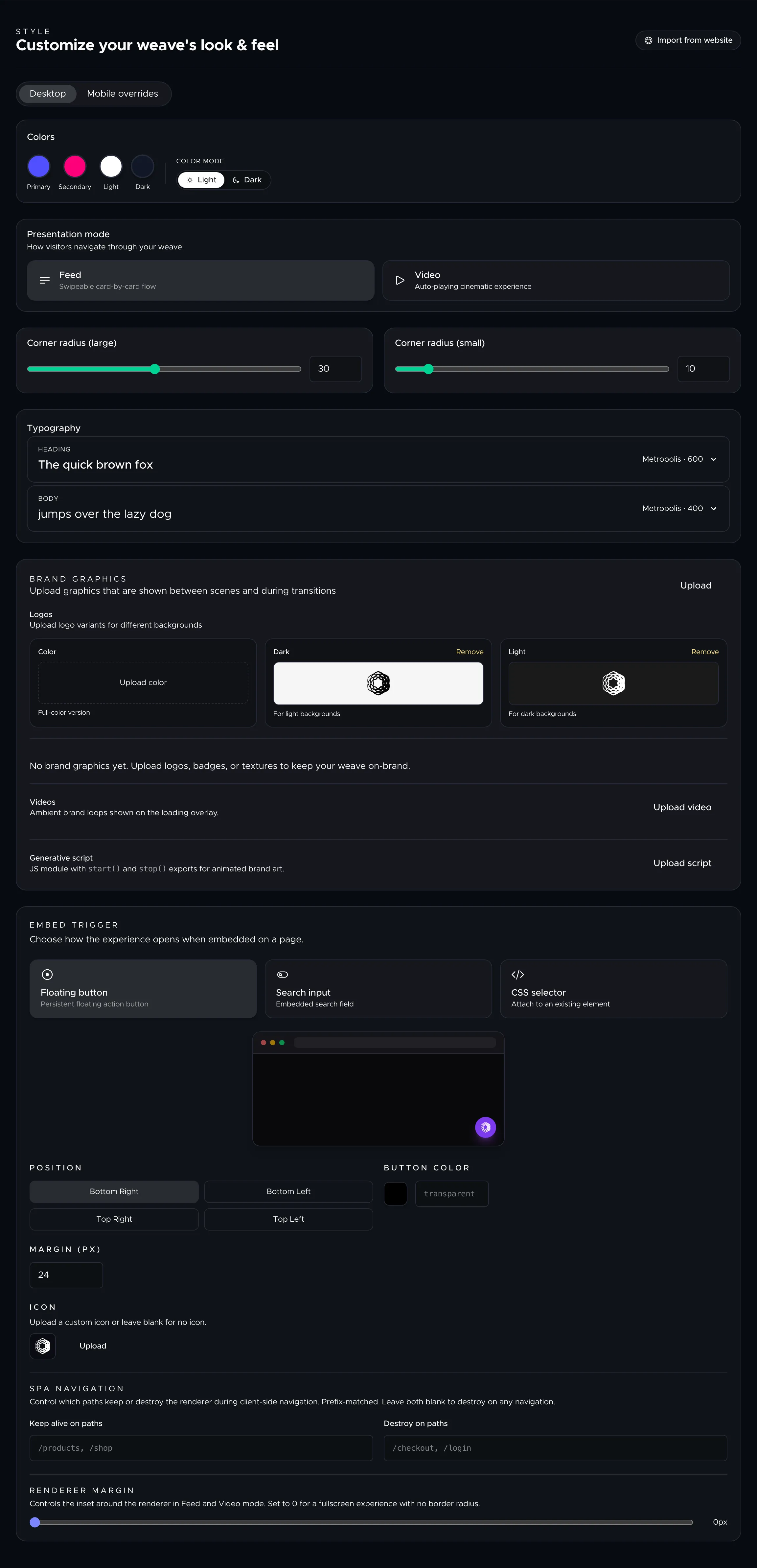
What the Style tab controls
The Style tab is available in every project alongside the main workflow tabs. Changes here apply across your entire Weave — every Thread, every component, every presentation mode.
Brand colors
Set your primary and secondary brand colors. These control accent elements, buttons, text highlights, and transitions throughout the Weave. Pick colors that match your existing product page so the experience feels native.
Typography
Upload custom fonts or choose from available options. Your font choices apply to all headings, body text, and UI elements in the Weave. Upload your brand's web fonts (WOFF format) for the most consistent look.
Logos
Add your brand logos for different contexts. Oeave supports light, dark, and color variants so the right logo appears regardless of the background. Logos can be PNG, SVG, or WebP format.
Brand graphics
Upload additional visual assets — patterns, textures, or lifestyle images — that the renderer can use as backgrounds and visual accents throughout the experience.
Style import
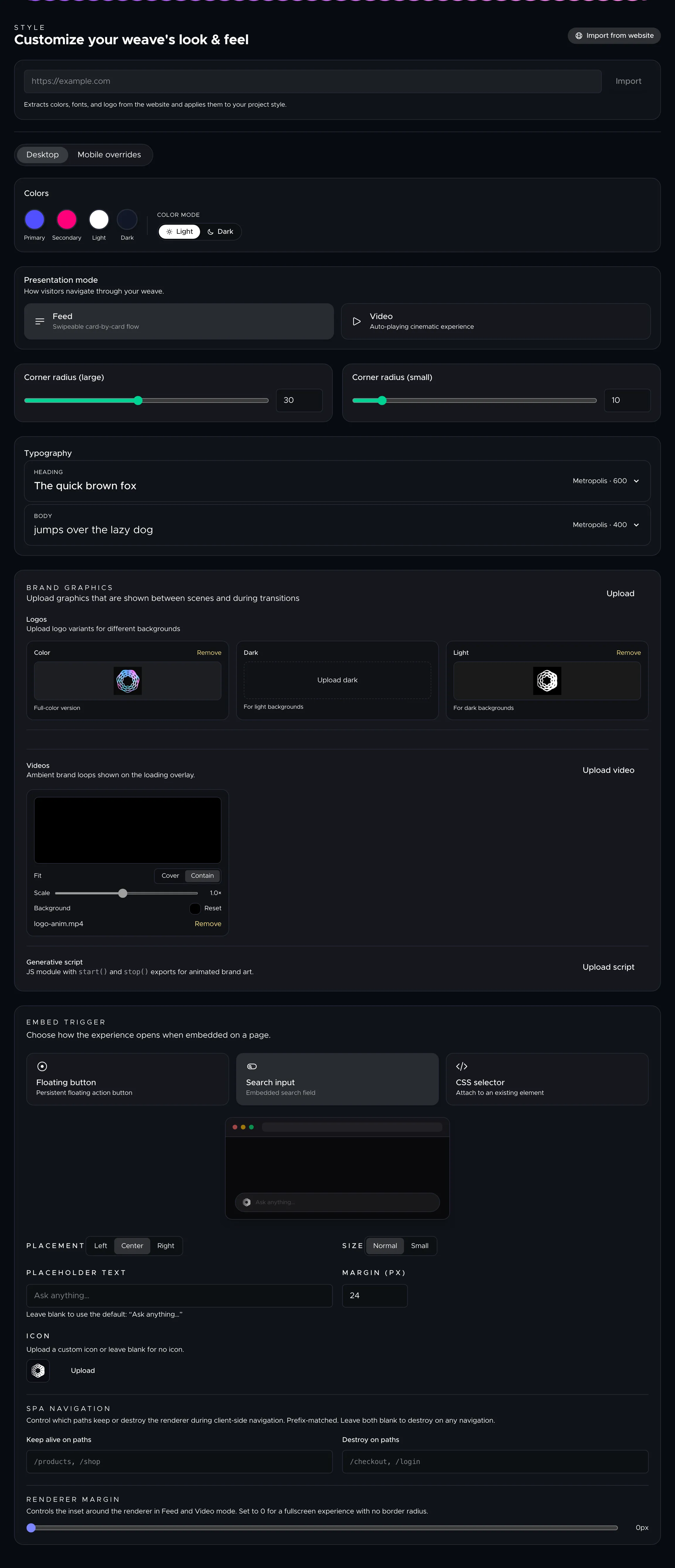
If you have an existing website, Oeave can extract your brand style automatically during the website import process. Colors, fonts, and logos are detected from the page and applied to your project style. You can review and adjust any extracted values afterward.
How styles affect the experience
Style settings cascade through every layer of the Weave:
- Component backgrounds pick up your brand colors and graphics.
- Text elements use your custom fonts at sizes optimized for each presentation mode.
- Transitions between sections use your brand's visual palette for seamless movement.
- Interactive elements like buttons and carousels reflect your accent colors.
Everything adapts to the active presentation mode. The same style renders beautifully whether the buyer is swiping through a feed or watching the auto-playing video version.
Republishing after style changes
Style changes are reflected the next time you publish. To see how the updated style looks, open the Preview Weave from the Publish tab. Once you are happy, hit Publish and the live embed updates automatically.
Next steps
- Background Graphics — add cinematic depth and motion behind your components
- Publishing and Embedding — go live with your styled Weave
- Presentation Modes — see how your style adapts to feed and video modes