Publishing and Embedding Your Weave
How to preview, publish, and embed your Weave on your product page — including the three embed tiers and what each one adds.
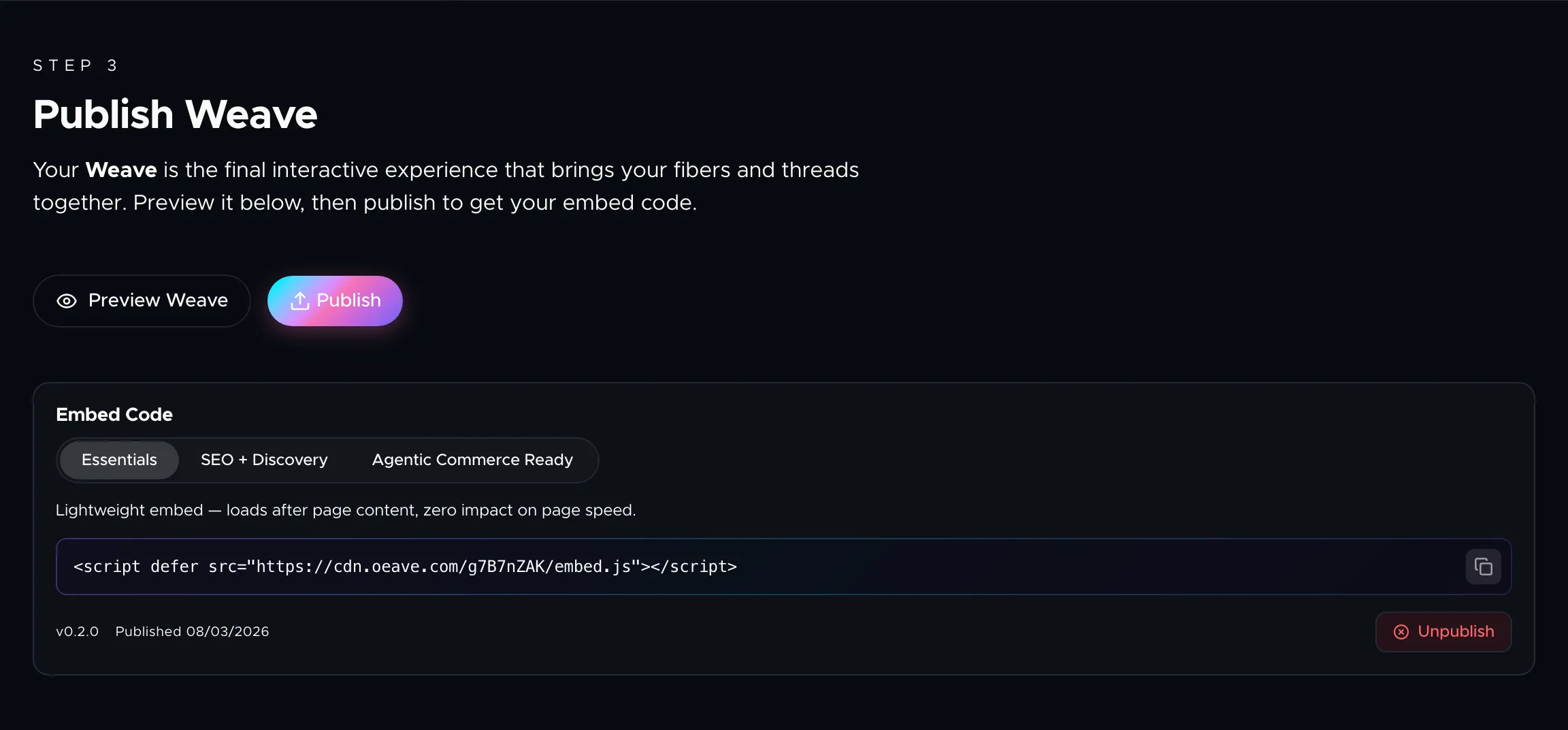
Once your Fibers are added, your Threads are built, and your style is set, you are ready to publish. The Publish Weave tab handles previewing, publishing, and generating the embed code for your site.
Previewing your Weave
Click Preview Weave to open a full-screen preview of your experience. This shows exactly what buyers will see, including transitions, animations, and interactive elements. You can switch between Feed and Video presentation modes within the preview.
Use the preview to verify that your content flows well, images load correctly, and the overall experience matches your expectations before going live.
Publishing
Click Publish to build and deploy your Weave. This packages all your Fibers, Threads, and style settings into an optimized bundle and uploads it to Oeave's CDN.
Publishing takes a few seconds. When it completes, you'll see a confirmation and the embed code section becomes available. You can republish at any time — after adding new Fibers, adjusting Threads, or changing your style — without changing the embed code on your site.
Embed code
After publishing, an embed code panel appears with three tiers. Each tier builds on the previous one:
Essentials
A single <script> tag. Drop it into the <head> of your product page and the interactive experience loads. It is lightweight, deferred, and has zero impact on your page speed.
This tier is available on every plan.
<script defer src="https://cdn.oeave.com/your-slug/embed.js"></script>
SEO + Discovery
Everything from Essentials, plus structured data and AI discoverability. This tier adds:
- llms.txt — an LLM-readable text file containing all your product information in a format that answer engines like ChatGPT, Perplexity, and Google AI Overviews can consume.
- Video sitemap — an XML sitemap listing video versions of your Threads, so search engines index them for rich video results.
- JSON-LD — structured product data (name, offers, reviews, FAQ) embedded directly in your page as Schema.org markup.
These additions let AI answer engines represent your product with rich, branded media instead of plain text snippets.
Available on the Pro plan and above.
Agentic Commerce Ready
Everything from SEO + Discovery, plus infrastructure for autonomous AI agents:
- Preconnect hints — DNS prefetch and preconnect headers for Oeave's CDN and API, ensuring faster loads.
- MCP server — an MCP-compatible endpoint that any AI agent can use to access your product data, search your knowledge base, and generate video answers programmatically.
- AI search endpoints — built for agentic commerce, allowing autonomous shopping agents to discover, compare, and recommend your products.
Available on the Growth plan.
Choosing an embed tier
Use the segmented toggle in the embed code panel to switch between tiers. The snippet updates to show exactly what you should paste into your page. When a tier requires a higher plan, you will see a preview of what the code includes along with an upgrade prompt.
Copy the snippet using the copy button in the top-right corner of the code block.
Unpublishing
Below the embed code, there is an Unpublish button. Unpublishing removes the deployed bundle immediately — the embed script on your site will stop loading content. Use this if you need to take the experience offline.
Published assets
When using the SEO + Discovery or Agentic Commerce tiers, quick-access links appear below the code block for your generated assets:
- llms.txt — opens the LLM-readable product file directly.
- videos.xml — opens the video sitemap for search engine review.
These links let you verify the generated files without leaving the dashboard.
Next steps
- Answer Engine Optimization — how Oeave makes your product visible to AI answer engines
- Previewing Your Weave — test your experience before going live
- Plans and Pricing — compare what each embed tier includes