Previewing Your Weave
How to use the preview modal to see your Weave in different presentation modes before publishing.
Before you publish, you'll want to see exactly how your Weave looks and feels. The preview lets you experience your threads as a buyer would — with all animations, transitions, and interactions running live.
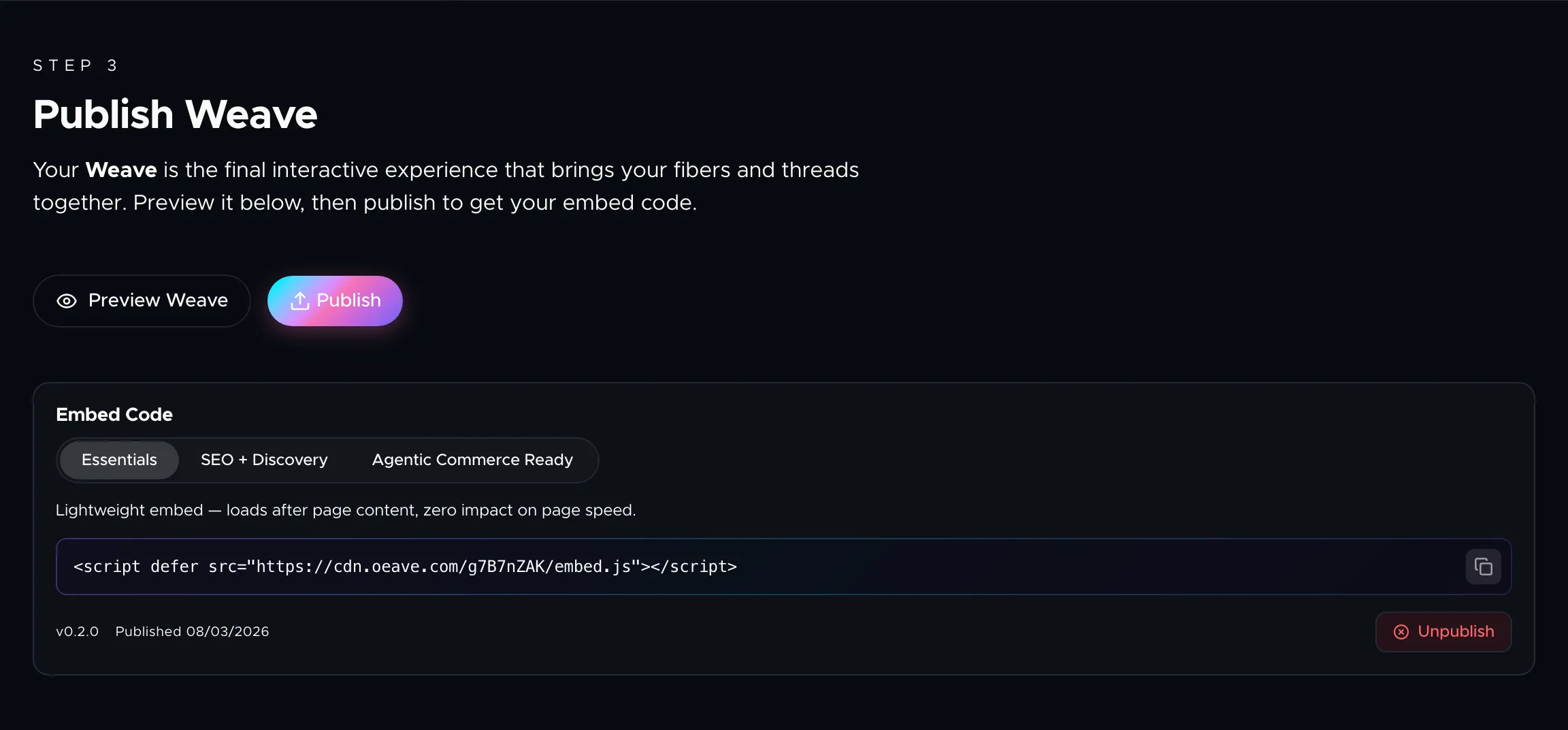
Opening the preview
There are two ways to preview:
- From the Publish tab — click Preview Weave to see the complete experience with all threads combined.
- From the Threads tab — click the eye icon on any individual thread to preview just that thread.
The preview opens as a full-screen overlay on top of the editor. Press Escape or click the close button to return to editing.
Presentation modes
The preview supports the same modes your buyers will see:
- Feed mode — content is presented as a swipeable, card-based feed. Buyers swipe through slides horizontally and scroll between threads vertically. This is the default mode and works best on mobile.
- Video mode — the experience plays automatically like a cinematic presentation. Each component transitions smoothly into the next. Buyers can scrub forward and backward using a timeline.
- Scroll mode — a traditional vertical scroll experience. All content is laid out in a continuous page that buyers scroll through at their own pace.
Switch between modes using the controls in the preview to see how your content adapts. Components automatically adjust their layout and animations for each mode.
Video preview
Click the film icon on a thread in the Threads tab to see how that thread would look as a rendered video. This is the same format used for video sitemaps and branded video answers in the agentic embed tier.
Iterating on your content
The preview reflects your current editor state in real time. Make changes to a thread or fiber, then preview again to see the result instantly — no need to publish first. This makes it easy to refine copy, swap images, and adjust component order until everything feels right.
Next steps
When you're happy with the preview, head to the Publish tab to go live. See Publishing and Embedding for the full publishing workflow.