Media and Assets
How to upload, manage, and reuse images, videos, and 3D models across your fibers and thread components.
Images, videos, and 3D models are the visual backbone of every Weave. Oeave provides tools for uploading media, browsing your asset library, and reusing assets across multiple fibers and thread components.
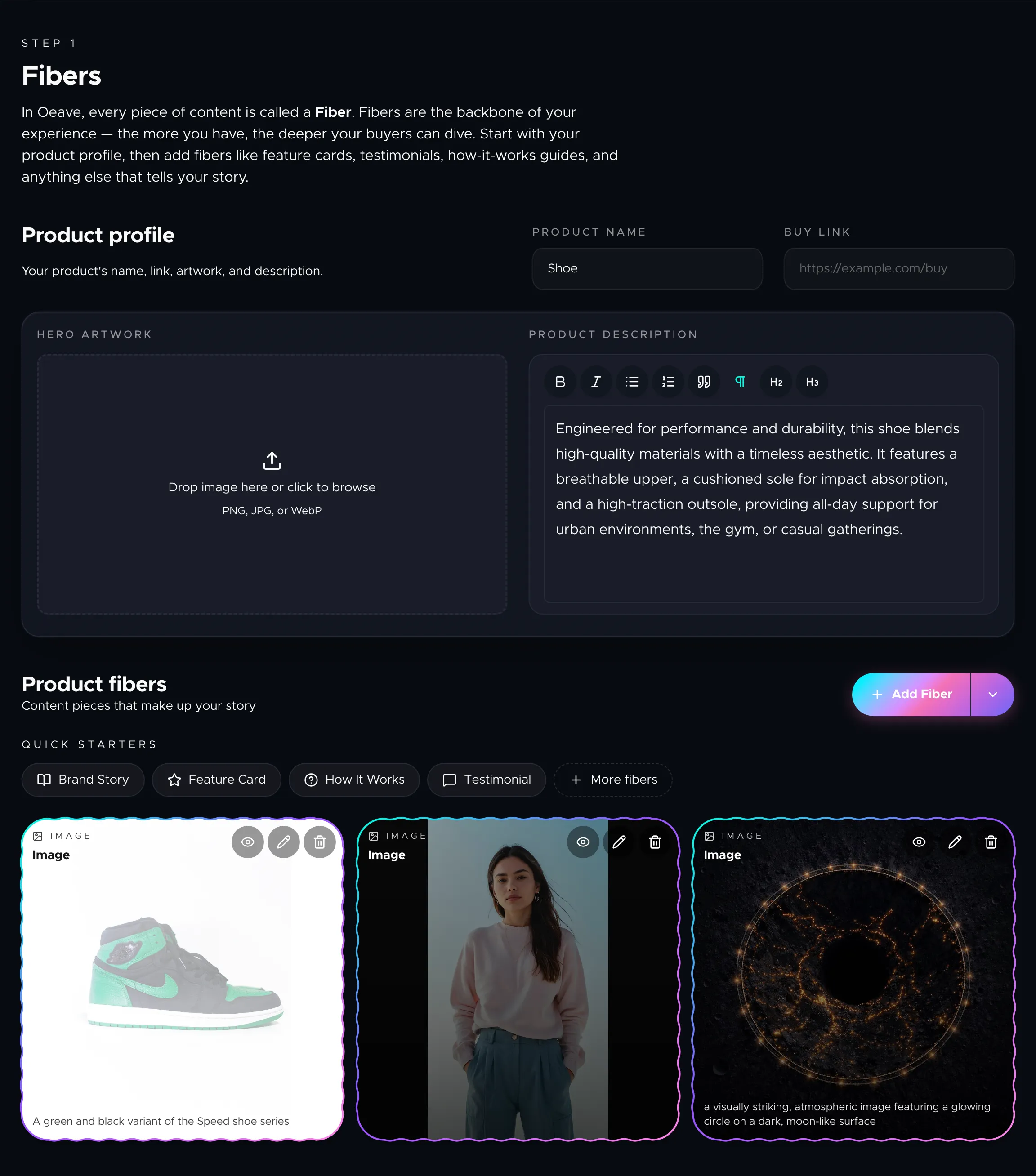
Uploading media
Wherever you see a media field — in a fiber form, a carousel slide, a card, or a background graphic — you'll find an upload area. You can:
- Click to browse — opens your system file picker.
- Drag and drop — drop image or video files directly onto the upload area.
Uploads are processed automatically. Images are optimized and served in multiple resolutions. Videos are transcoded for smooth playback across devices.
The asset gallery
When you click a media field that supports the gallery, a modal opens showing all media you've already uploaded to this project. Instead of re-uploading the same image for different components, you can pick from what's already there.
The gallery shows thumbnail previews organized by upload date. Click any asset to select it. This makes it easy to reuse hero images across carousel slides, card backgrounds, and background graphics.
Supported formats
| Type | Formats |
|---|---|
| Images | JPEG, PNG, WebP, SVG |
| Videos | MP4, WebM |
| 3D models | GLB |
Image processing
When you upload an image, Oeave automatically:
- Generates responsive srcSets at multiple resolutions for fast loading on any device.
- Creates depth maps for the parallax and Ken Burns effects used in background graphics and the Image component.
- Classifies images as "crop-safe" or not, so the renderer knows whether it can safely crop them in cover mode.
Tips for great media
- Use high-resolution images. At least 1400px wide to look sharp on desktop.
- Keep file sizes reasonable. The system compresses images, but starting under 5MB per image speeds up uploads.
- Use consistent lighting. Product shots with similar lighting and backgrounds create a more cohesive Weave.
- Match your video to the mode. Short clips (10–30 seconds) work best for video mode. Longer videos are fine in feed mode where buyers control playback.
Next steps
To learn how to use media in background graphics for maximum visual impact, see Background Graphics. For details on the components that display media, see Component Reference.