Importing Content
Three ways to populate your project quickly — scrape a website, upload documents and images, or generate Fibers through AI chat.
Adding Fibers one at a time works, but most products already have content sitting in existing pages, documents, and image folders. Oeave gives you three import paths to get that content into your project fast. All import options are available from the dropdown next to the Add Fiber button on the Fibers tab.
Import from website
Click Add from website and paste the URL of an existing product page, landing page, or brand page. Oeave fetches the page and breaks it down into individual Fibers:
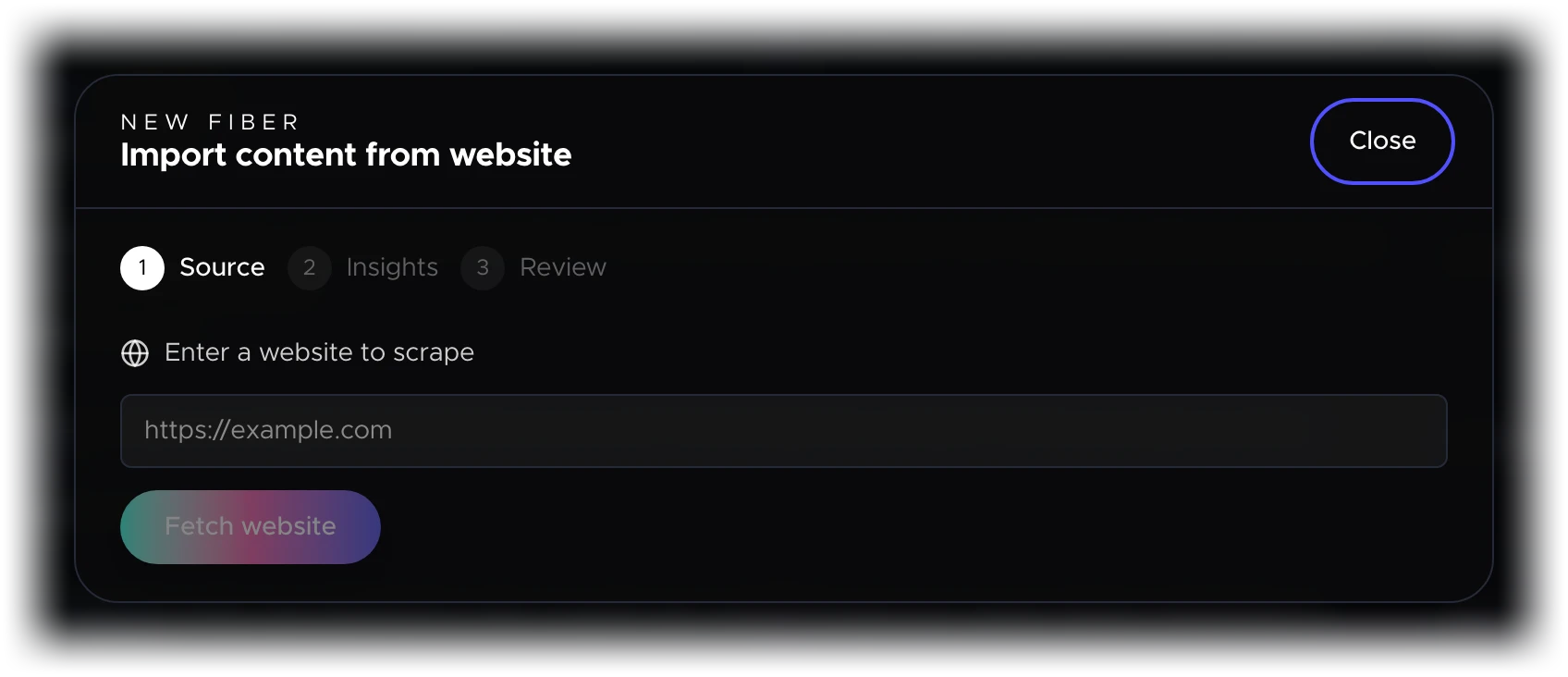
- Text blocks become feature cards, brand stories, or how-it-works Fibers depending on their content.
- Images are downloaded and turned into Image Fibers with auto-generated descriptions.
- Structured content like specs or FAQs is detected and categorized.
This is the fastest way to bootstrap a project when you already have a live product page. You can review and edit every imported Fiber afterward — nothing is locked in.
Import from files
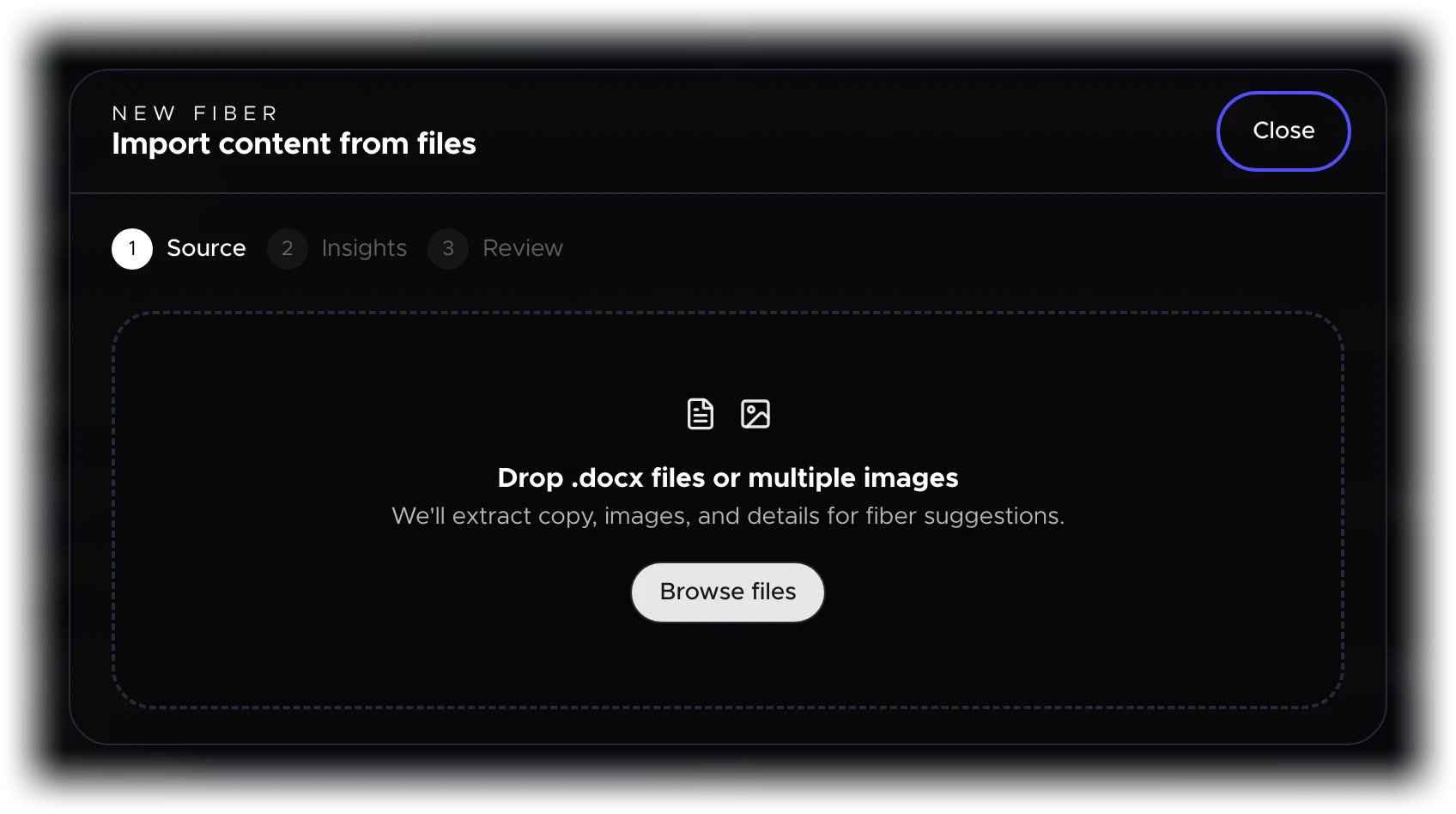
Click Add from files to upload content in two formats:
Word documents
Upload a .docx file and Oeave parses it into individual Fibers. Headings, paragraphs, and lists are analyzed and assigned to the most appropriate Fiber types. This works well for product briefs, spec sheets, or brand guides.
Bulk image upload
Drag and drop multiple images at once. Each image becomes its own Image Fiber. Oeave generates a text description for every image automatically, so each one can appear at the right moment in the experience.
This is particularly useful when you have a library of product photography, lifestyle shots, or detail images ready to go.
Import with AI
Click Add with AI to open a guided flow. Answer seven key questions about your product — who it is for, what it does, what makes it different — and Oeave generates relevant Fibers from your answers.
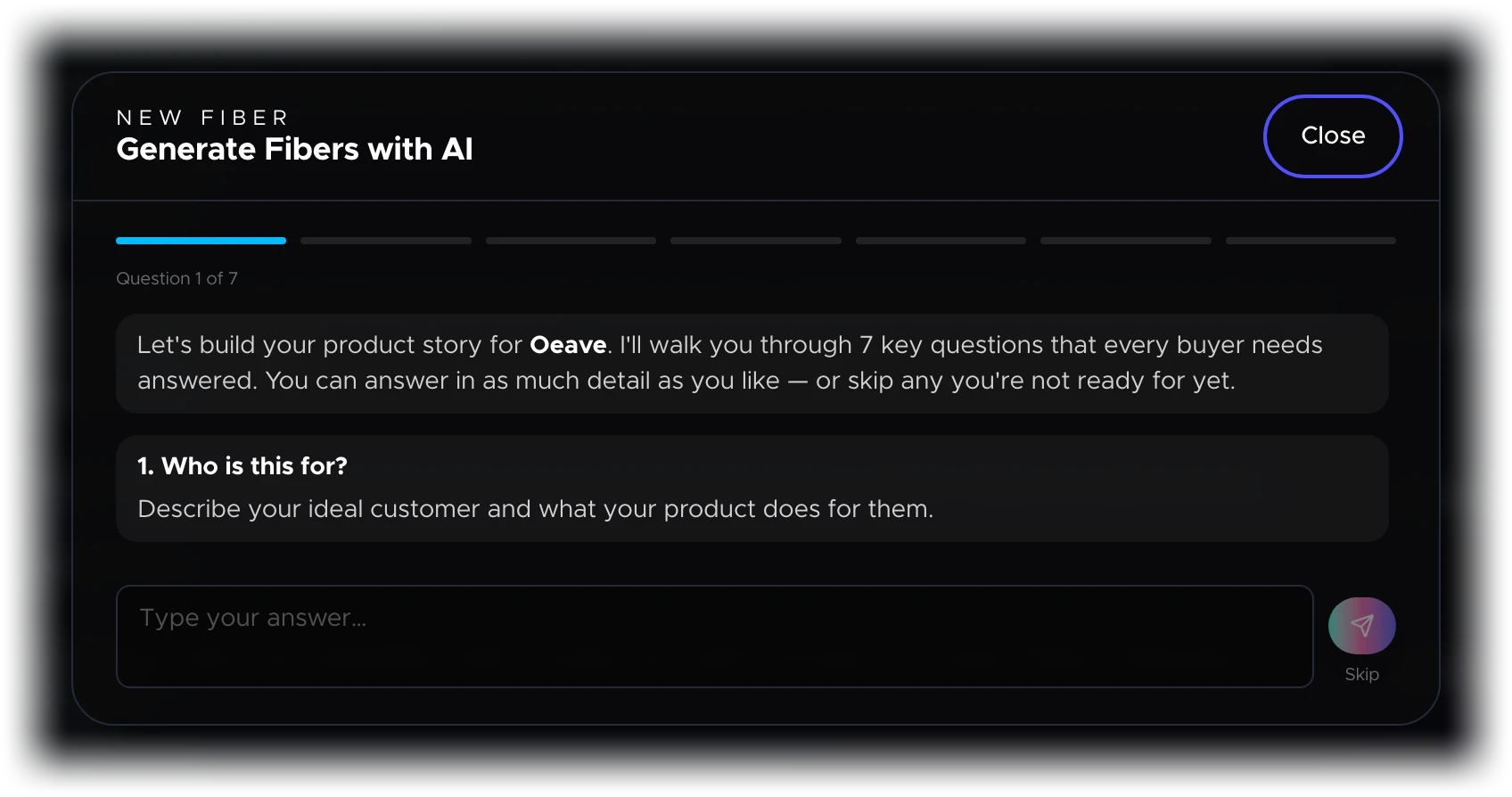
The AI draws from your description to create feature cards, benefit cards, problem statements, and other fiber types. It is a good starting point when you are building from scratch and don't have existing content to import.
You can accept, edit, or discard each generated Fiber individually.
Combining import methods
These import paths are not mutually exclusive. A common workflow is to start with a website import to capture your existing content, add product photography through bulk upload, then fill in gaps with AI-generated Fibers.
After importing, visit the Fibers tab to review everything. Edit any Fiber by clicking its card, reorder priorities, or remove anything that does not belong. The goal is a comprehensive content library that covers every angle a buyer might care about.
Next steps
- Understanding Fibers — learn about all 30 fiber types
- Building Threads — turn your imported Fibers into buyer experiences
- Media and Assets — manage uploaded images, videos, and 3D models